2-channel RTD module RTD-RS01P
PC Temperature Module PT100/PT1000 Acquisition Debug Module User Manual V1.0
1. Overview
This software is a dedicated PC control program designed for the RS01P series RTD temperature transmitter modules.
Compatible with Windows operating systems only!
Core Features:
- 2-Channel RTD: Can simultaneously acquire data from 2 RTD channels, supporting 2-wire, 3-wire, or 4-wire connections.
- Multi-Type Support: Supports both PT100 and PT1000 RTDs.
- Dual Language Selection: Supports switching between Chinese and English.
- LAN Web Component Support: Enables a LAN webpage with one click, allowing multiple devices to view data simultaneously.
2. Preparations
Before running the software, ensure the hardware is correctly connected:
- Connect Converter: Connect the USB to 485 converter to your computer.
- Connect Module: Connect the module's
A+andB-wires to the 485 converter. - Connect RTD:
- 2-Wire Connection: One end connects to CH1-CH2, the other end to COM. Polarity does not matter.
- 3-Wire and 4-Wire Connection:
- Group wires by color. One end (grouped wires) connects to CH1-CH2, the other end to COM. Polarity does not matter.
3. Software Operation
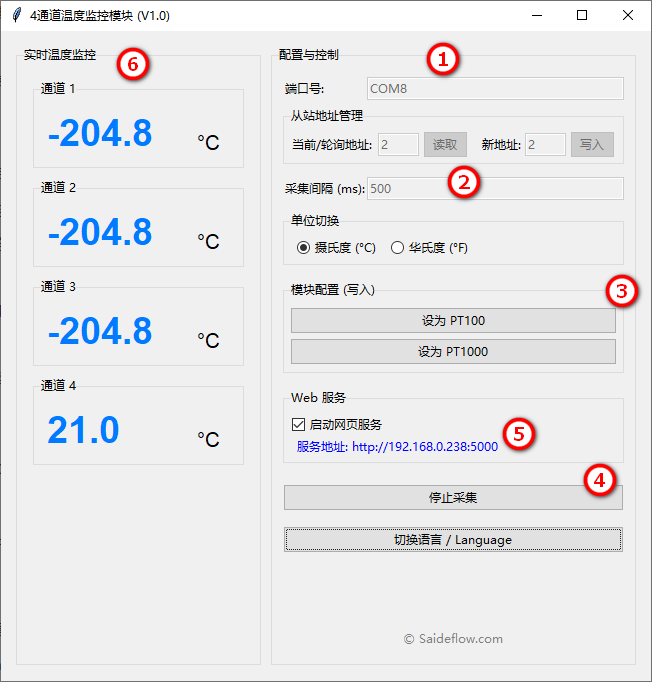
-
Run Program: Open
RTD.V1.0.exe. -
Configure Serial Port: In the "Port Number" box at the top right, enter the COM port identified by your computer.
3.1 How to Obtain the COM Port Number
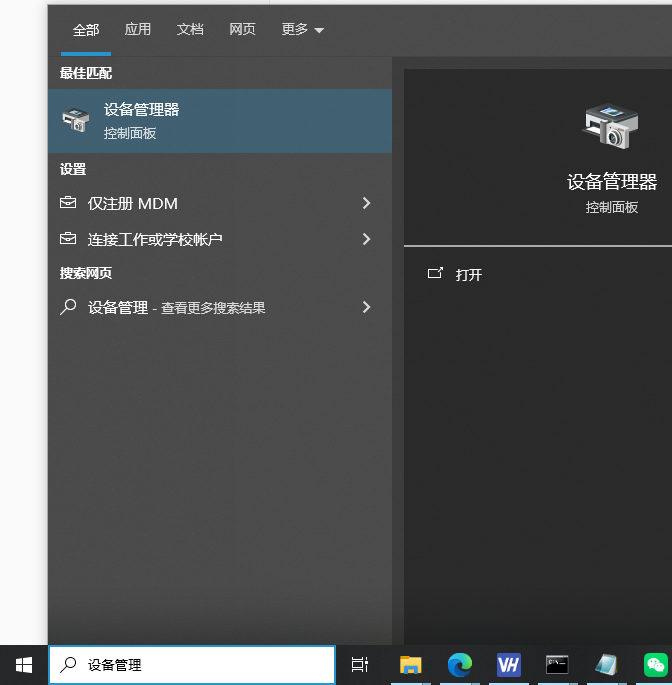
- Search for "Device Manager" in the Windows system and open it.
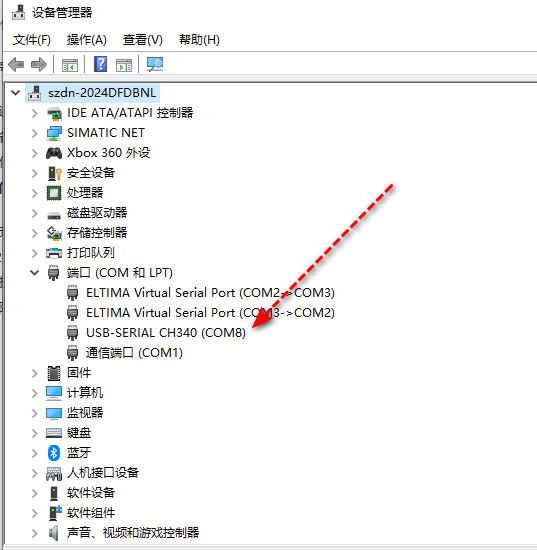
- Open "Ports (COM & LPT)" to check. Normally, drivers are not required. If it is not recognized, you may need to install the relevant driver
CH341SER.EXE.
3.2 How to Operate:
- Enter the correct COM port number.
- Click the "Read" button to correctly identify the slave station address.
- RTD Type: Select whether PT100 or PT1000 is connected.
- Start Acquisition.
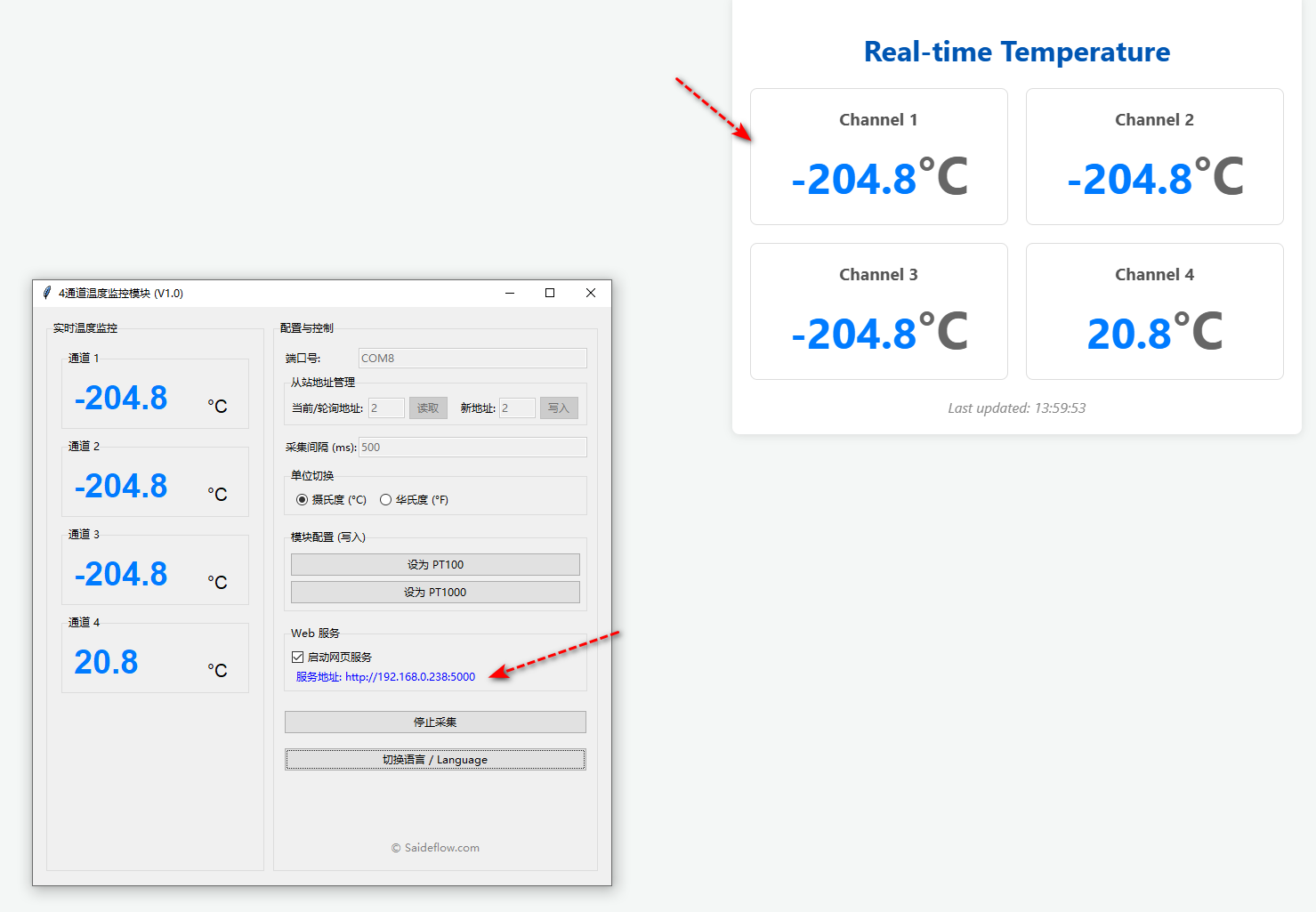
- This software has built-in web functionality. After enabling it, you can view sensor values through a browser on the local area network.
- View test values on the left panel.
4. Troubleshooting
- Error: "Operation failed: could not open port 'COMX': PermissionError..."
- Cause: The COM port you are trying to use is already occupied by another program (e.g., another serial port tool, an old version of the program you didn't close previously).
- Solution: Close all programs that might be using that serial port and try again.
- No response after clicking "Read Address" or "Refresh Status"
- Cause: Incorrect COM port selection, mismatched slave address, or hardware wiring issues.
- Solution: Carefully check the above three aspects窗口中.